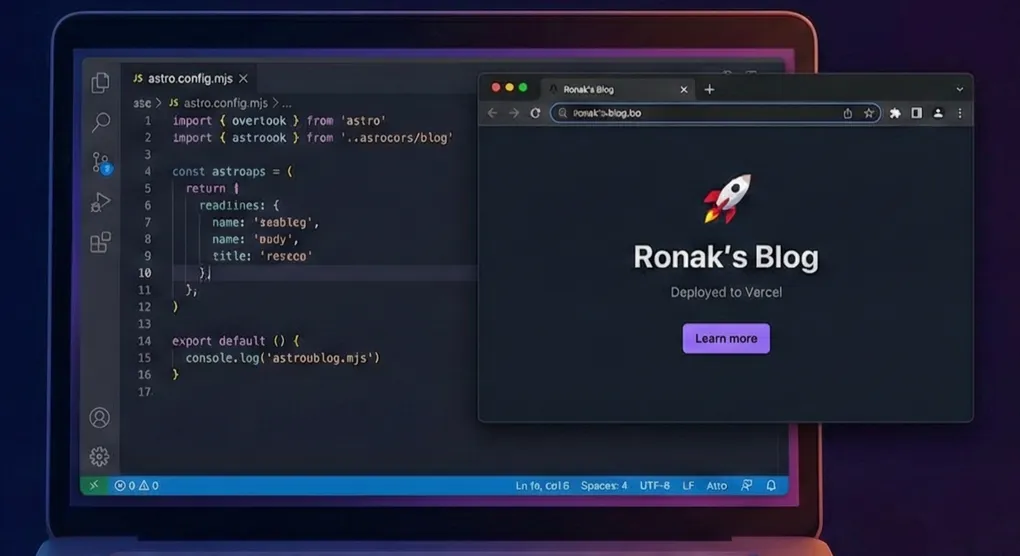
Build and Deploy a Blog in 15 Minutes with Astro
Introduction
Want to start blogging but don’t want to deal with complicated setups or slow-loading sites? Astro is a modern web framework that generates lightning-fast static sites perfect for blogs. In this tutorial, you’ll learn how to build and deploy a professional blog in just 15 minutes.
By the end of this guide, you’ll have a fully functional blog like blog.ronakbuilds.com deployed and accessible on the internet!
Why Astro?
- Lightning Fast: Ships zero JavaScript by default
- SEO Friendly: Perfect Lighthouse scores out of the box
- Simple to Use: Write in Markdown, customize with components
- Free Hosting: Deploy to Vercel for free
Prerequisites
Before we begin, make sure you have:
- Node.js installed (version 18 or higher)
- A code editor (VS Code recommended)
- A GitHub account
- A Vercel account (sign up free at vercel.com)
Step 1: Create Your Astro Blog
Open your terminal and run:
npm create astro@latestYou’ll be prompted with several questions:
Where should we create your new project?
› my-blog

How would you like to start your new project?
› Use blog template

Do you plan to write TypeScript?
› No

Install dependencies?
› Yes

Initialize a new git repository?
› Yes
Navigate to your project:
cd my-blogStep 2: Start the Development Server
Run the development server to see your blog:
npm run devOpen your browser and visit http://localhost:4321. You should see your blog running locally!
Step 3: Customize Your Blog
Update Site Information
Open src/consts.ts and update your site details:
export const SITE_TITLE = 'Ronak\'s Blog';
export const SITE_DESCRIPTION = 'Welcome to my blog where I share insights on AI, development, and technology';
Add Your First Blog Post
Navigate to src/content/blog/ and create a new file my-first-post.md:
---
title: 'My First Blog Post'
description: 'This is my first post on my new Astro blog'
pubDate: 'Jan 01 2026'
heroImage: '/blog-placeholder.jpg'
tags: ['Blog', 'First Post']
---

## Welcome to My Blog!

This is my first blog post. I'm excited to start sharing my thoughts and ideas here.

### What I'll Be Writing About

- Technology trends
- Development tutorials
- Personal projects

Stay tuned for more content!
Save the file and check your local site - your new post should appear on the homepage!
Step 4: Deploy to Vercel
Push to GitHub
First, commit your changes:
git add .
git commit -m "Initial blog setup"
Create a new repository on GitHub, then push your code:
git remote add origin https://github.com/yourusername/my-blog.git
git branch -M main
git push -u origin main
Deploy with Vercel
- Go to vercel.com and sign in
- Click “Add New Project”
- Import your GitHub repository
- Vercel will automatically detect it’s an Astro project
- Click “Deploy”
That’s it! In about 2 minutes, your blog will be live at your-project.vercel.app.
Set Up Custom Domain (Optional)
In your Vercel project dashboard:
- Go to Settings → Domains
- Add your custom domain (e.g.,
blog.yourdomain.com) - Follow Vercel’s instructions to update your DNS settings
Step 5: Write More Posts
To add more blog posts, simply create new .md files in src/content/blog/:
---
title: 'Your Post Title'
description: 'Brief description'
pubDate: 'Jan 02 2026'
heroImage: '/images/your-image.jpg'
tags: ['Tag1', 'Tag2']
---

Your content here...
After pushing to GitHub, Vercel will automatically rebuild and deploy your site!
Tips for Great Blog Posts
- Use descriptive titles - Make it clear what the post is about
- Add hero images - Visual appeal matters (1200x630px recommended)
- Write good descriptions - Helps with SEO and social sharing
- Use tags - Organize your content for readers
- Format with markdown - Use headers, lists, and code blocks
Optional Customizations
Want to customize your blog further? Here are some popular modifications:
Remove Home and About Pages from Navigation
If you want a cleaner header with just your blog name and social icons, update your header component.
Update Header Component
Replace src/components/Header.astro with:
---
import { SITE_TITLE } from '../consts';
---

<header>
  <nav>
    <div class="header-content">
      <h2>
        <a href="/">{SITE_TITLE}</a>
      </h2>
      <div class="social-links">
        <a href="https://github.com/yourusername" target="_blank" aria-label="GitHub">
          <svg width="20" height="20" viewBox="0 0 24 24" fill="currentColor">
            <path d="M12 0c-6.626 0-12 5.373-12 12 0 5.302 3.438 9.8 8.207 11.387.599.111.793-.261.793-.577v-2.234c-3.338.726-4.033-1.416-4.033-1.416-.546-1.387-1.333-1.756-1.333-1.756-1.089-.745.083-.729.083-.729 1.205.084 1.839 1.237 1.839 1.237 1.07 1.834 2.807 1.304 3.492.997.107-.775.418-1.305.762-1.604-2.665-.305-5.467-1.334-5.467-5.931 0-1.311.469-2.381 1.236-3.221-.124-.303-.535-1.524.117-3.176 0 0 1.008-.322 3.301 1.23.957-.266 1.983-.399 3.003-.404 1.02.005 2.047.138 3.006.404 2.291-1.552 3.297-1.23 3.297-1.23.653 1.653.242 2.874.118 3.176.77.84 1.235 1.911 1.235 3.221 0 4.609-2.807 5.624-5.479 5.921.43.372.823 1.102.823 2.222v3.293c0 .319.192.694.801.576 4.765-1.589 8.199-6.086 8.199-11.386 0-6.627-5.373-12-12-12z"/>
          </svg>
        </a>
        <a href="https://twitter.com/yourusername" target="_blank" aria-label="Twitter">
          <svg width="20" height="20" viewBox="0 0 24 24" fill="currentColor">
            <path d="M23.953 4.57a10 10 0 01-2.825.775 4.958 4.958 0 002.163-2.723c-.951.555-2.005.959-3.127 1.184a4.92 4.92 0 00-8.384 4.482C7.69 8.095 4.067 6.13 1.64 3.162a4.822 4.822 0 00-.666 2.475c0 1.71.87 3.213 2.188 4.096a4.904 4.904 0 01-2.228-.616v.06a4.923 4.923 0 003.946 4.827 4.996 4.996 0 01-2.212.085 4.936 4.936 0 004.604 3.417 9.867 9.867 0 01-6.102 2.105c-.39 0-.779-.023-1.17-.067a13.995 13.995 0 007.557 2.209c9.053 0 13.998-7.496 13.998-13.985 0-.21 0-.42-.015-.63A9.935 9.935 0 0024 4.59z"/>
          </svg>
        </a>
        <a href="https://linkedin.com/in/yourusername" target="_blank" aria-label="LinkedIn">
          <svg width="20" height="20" viewBox="0 0 24 24" fill="currentColor">
            <path d="M20.447 20.452h-3.554v-5.569c0-1.328-.027-3.037-1.852-3.037-1.853 0-2.136 1.445-2.136 2.939v5.667H9.351V9h3.414v1.561h.046c.477-.9 1.637-1.85 3.37-1.85 3.601 0 4.267 2.37 4.267 5.455v6.286zM5.337 7.433c-1.144 0-2.063-.926-2.063-2.065 0-1.138.92-2.063 2.063-2.063 1.14 0 2.064.925 2.064 2.063 0 1.139-.925 2.065-2.064 2.065zm1.782 13.019H3.555V9h3.564v11.452zM22.225 0H1.771C.792 0 0 .774 0 1.729v20.542C0 23.227.792 24 1.771 24h20.451C23.2 24 24 23.227 24 22.271V1.729C24 .774 23.2 0 22.222 0h.003z"/>
          </svg>
        </a>
      </div>
    </div>
  </nav>
</header>

<style>
  header {
    margin: 0;
    padding: 0 1rem;
    background: white;
    box-shadow: 0 2px 8px rgba(0,0,0,.03);
  }

  nav {
    max-width: 1200px;
    margin: 0 auto;
  }

  .header-content {
    display: flex;
    align-items: center;
    justify-content: space-between;
    padding: 1.5rem 0;
  }

  h2 {
    margin: 0;
    font-size: 1.5rem;
  }

  h2 a {
    text-decoration: none;
    color: rgb(var(--black));
  }

  .social-links {
    display: flex;
    gap: 1.5rem;
    align-items: center;
  }

  .social-links a {
    color: rgb(var(--gray));
    display: flex;
    align-items: center;
    transition: color 0.2s ease;
  }

  .social-links a:hover {
    color: rgb(var(--accent));
  }

  @media (max-width: 720px) {
    .header-content {
      flex-direction: column;
      gap: 1rem;
      text-align: center;
    }
  }
</style>
Update Footer Component
Replace src/components/Footer.astro with:
---
const today = new Date();
---
<footer>
<div class="footer-content">
<div class="social-links">
<a href="https://github.com/yourusername" target="_blank" rel="noopener noreferrer" aria-label="GitHub">
<svg width="24" height="24" viewBox="0 0 24 24" fill="currentColor">
<path d="M12 0c-6.626 0-12 5.373-12 12 0 5.302 3.438 9.8 8.207 11.387.599.111.793-.261.793-.577v-2.234c-3.338.726-4.033-1.416-4.033-1.416-.546-1.387-1.333-1.756-1.333-1.756-1.089-.745.083-.729.083-.729 1.205.084 1.839 1.237 1.839 1.237 1.07 1.834 2.807 1.304 3.492.997.107-.775.418-1.305.762-1.604-2.665-.305-5.467-1.334-5.467-5.931 0-1.311.469-2.381 1.236-3.221-.124-.303-.535-1.524.117-3.176 0 0 1.008-.322 3.301 1.23.957-.266 1.983-.399 3.003-.404 1.02.005 2.047.138 3.006.404 2.291-1.552 3.297-1.23 3.297-1.23.653 1.653.242 2.874.118 3.176.77.84 1.235 1.911 1.235 3.221 0 4.609-2.807 5.624-5.479 5.921.43.372.823 1.102.823 2.222v3.293c0 .319.192.694.801.576 4.765-1.589 8.199-6.086 8.199-11.386 0-6.627-5.373-12-12-12z"/>
</svg>
</a>
<a href="https://twitter.com/yourusername" target="_blank" rel="noopener noreferrer" aria-label="Twitter">
<svg width="24" height="24" viewBox="0 0 24 24" fill="currentColor">
<path d="M23.953 4.57a10 10 0 01-2.825.775 4.958 4.958 0 002.163-2.723c-.951.555-2.005.959-3.127 1.184a4.92 4.92 0 00-8.384 4.482C7.69 8.095 4.067 6.13 1.64 3.162a4.822 4.822 0 00-.666 2.475c0 1.71.87 3.213 2.188 4.096a4.904 4.904 0 01-2.228-.616v.06a4.923 4.923 0 003.946 4.827 4.996 4.996 0 01-2.212.085 4.936 4.936 0 004.604 3.417 9.867 9.867 0 01-6.102 2.105c-.39 0-.779-.023-1.17-.067a13.995 13.995 0 007.557 2.209c9.053 0 13.998-7.496 13.998-13.985 0-.21 0-.42-.015-.63A9.935 9.935 0 0024 4.59z"/>
</svg>
</a>
<a href="https://linkedin.com/in/yourusername" target="_blank" rel="noopener noreferrer" aria-label="LinkedIn">
<svg width="24" height="24" viewBox="0 0 24 24" fill="currentColor">
<path d="M20.447 20.452h-3.554v-5.569c0-1.328-.027-3.037-1.852-3.037-1.853 0-2.136 1.445-2.136 2.939v5.667H9.351V9h3.414v1.561h.046c.477-.9 1.637-1.85 3.37-1.85 3.601 0 4.267 2.37 4.267 5.455v6.286zM5.337 7.433c-1.144 0-2.063-.926-2.063-2.065 0-1.138.92-2.063 2.063-2.063 1.14 0 2.064.925 2.064 2.063 0 1.139-.925 2.065-2.064 2.065zm1.782 13.019H3.555V9h3.564v11.452zM22.225 0H1.771C.792 0 0 .774 0 1.729v20.542C0 23.227.792 24 1.771 24h20.451C23.2 24 24 23.227 24 22.271V1.729C24 .774 23.2 0 22.222 0h.003z"/>
</svg>
</a>
<a href="/rss.xml" target="_blank" rel="noopener noreferrer" aria-label="RSS Feed">
<svg width="24" height="24" viewBox="0 0 24 24" fill="currentColor">
<path d="M6.503 20.752c0 1.794-1.456 3.248-3.251 3.248-1.796 0-3.252-1.454-3.252-3.248 0-1.794 1.456-3.248 3.252-3.248 1.795.001 3.251 1.454 3.251 3.248zm-6.503-12.572v4.811c6.05.062 10.96 4.966 11.022 11.009h4.817c-.062-8.71-7.118-15.758-15.839-15.82zm0-3.368c10.58.046 19.152 8.594 19.183 19.188h4.817c-.03-13.231-10.755-23.954-24-24v4.812z"/>
</svg>
</a>
</div>
<p>© {today.getFullYear()} Your Name. All rights reserved.</p>
</div>
</footer>
<style>
footer {
padding: 2rem 1rem;
background-color: rgb(var(--gray-light));
margin-top: auto;
}
.footer-content {
max-width: 1200px;
margin: 0 auto;
display: flex;
flex-direction: column;
align-items: center;
gap: 1.5rem;
}
.social-links {
display: flex;
gap: 2rem;
align-items: center;
}
.social-links a {
color: rgb(var(--gray-dark));
display: flex;
align-items: center;
transition: color 0.2s ease, transform 0.2s ease;
}
.social-links a:hover {
color: rgb(var(--accent));
transform: translateY(-2px);
}
p {
margin: 0;
color: rgb(var(--gray));
font-size: 0.9rem;
text-align: center;
}
@media (max-width: 720px) {
.social-links {
gap: 1.5rem;
}
.social-links svg {
width: 20px;
height: 20px;
}
}
</style>Don’t forget to replace https://github.com/yourusername and other social links with your actual profiles!
Make Homepage Show Blog Posts
If you want the root URL (/) to show your blog posts instead of a separate page, update src/pages/index.astro to display your blog listing.
Conclusion
Congratulations! You now have a fully functional blog deployed to the internet. Your blog is:
- ⚡ Lightning fast
- 🎨 Clean and professional
- 📱 Mobile responsive
- 🚀 Automatically deployed on every push
Next Steps
- Write your first real blog post
- Add a custom domain
- Customize the styling to match your brand
- Add analytics (Vercel Analytics is built-in)
- Share your blog with the world!
Happy blogging! 🎉
Live Example: Check out blog.ronakbuilds.com to see this setup in action.